Choose how to get Shadowrocket for your device: iPhone / iPad costs $2.99 once in the App Store; Mac, Windows, Android and Linux versions are free. Have your own subscription or server details ready before installation.
Current version v2.2.92 · iPhone / iPad $2.99 once; Mac, Windows, Android and Linux free
2 ways to get itDownload sources iPhone / iPad: App Store; other platforms: this siteCurrent version v2.2.92iPhone / iPad $2.99 once · other platforms freeDeveloper Shadow Launch Technology LimitedApp ID 932747118
Downloads for all platforms and architecture choices
Check your operating system first, then confirm your processor architecture. iPhone / iPad costs $2.99 once in the App Store; Mac, Windows, Android and Linux versions are free. Installers on this site are under /dl/shadowrocket/. Files for different systems are not interchangeable.
iPhone / iPad
$2.99 one-time purchase.
Requires iOS / iPadOS 13.0 or later; check the App Store page for the listed system requirements. Use your own Apple ID to purchase and install. An iPhone and iPad signed in with the same Apple ID can share one purchase.
Requires macOS 12 or later. DMG installers are available for Apple Silicon and Intel. Not sure which one to choose? Open About This Mac and check Chip / Processor, then choose the matching version. Do not rely only on the computer's purchase year.
An x64 (64-bit) EXE installer is available. Check System type under Settings → System → About, then download the appropriate file. If SmartScreen appears the first time you run the installer, follow the installation prompt steps below to verify the source and proceed.
An arm64 APK is available for most Android phones and tablets released in recent years. After downloading, open the file from your browser's downloads list. Follow the system prompt to allow this installation source to install unknown apps. You can revoke this permission after installation.
Files are available for x86_64 / amd64. Choose deb for Debian or Ubuntu, rpm for Fedora or openSUSE, or AppImage for other distributions; add execute permission before running it. Each format uses a different installation method. You do not need to install all three.
Device detection only highlights the current system; it does not replace checking the architecture. Both Mac versions remain available. On Linux, choose a file format for your distribution. If your browser does not detect your device, you can still use any of the links above.
Allow installation and open the app for the first time
The desktop and Android installers provided on this site are not code-signed, so the system may block them the first time you open them. If a prompt appears, first confirm that the file came from this page and its download path is under /dl/shadowrocket/ on this site, then follow the steps for your system. Do not apply these steps to files from unknown sources or disable system-wide protection just to install the app.
Downloading a file and installing the app are separate steps: a browser's download-complete message only means the file has been saved. On Mac, move the app to Applications; on Windows, run the installer; on Android, confirm the installation; on Linux, follow the steps for the package format. If your computer is managed by a school or organization, system policies may prevent you from allowing the app. Contact your device administrator in that case.
System and prompt
Steps
Before you proceed
Windows “Windows protected your PC”
In the SmartScreen window, select “More info,” verify the file, then select “Run anyway” and complete the installation wizard.
Use the x64 EXE downloaded from this page. If organizational policy does not provide an option to proceed, ask your administrator.
macOS “Cannot verify developer”
Move Shadowrocket to Applications and try to open it. Then go to System Settings → Privacy & Security, find the relevant blocked app message, select “Open Anyway,” and confirm.
Requires macOS 12 or later, and the installer must match your chip. On older systems, the settings may be called “System Preferences.”
macOS “App is damaged” prompt
After confirming the app is in Applications, run this in Terminal: xattr -cr /Applications/Shadowrocket.appThen reopen the app.
This command clears extended attributes for the specified app. Run it only for an app confirmed to be from this site. If it still fails, download the installer that matches your system again.
Android “Allow installation of unknown apps”
Follow the prompt to open the installation permissions page for the current browser or file manager. Turn on “Allow installation of unknown apps,” then return to the downloaded file and continue.
Use the arm64 APK. The permission applies to the app used to open the file. You can turn it off after installation.
Linux AppImage
Open a terminal in the downloads directory and add execute permission: chmod +x ./Shadowrocket-*-linux-x86_64.AppImageThen launch it: ./Shadowrocket-*-linux-x86_64.AppImage
Keep only the matching file you intend to run in the directory. The asterisk in the command matches the version portion of the filename.
Linux Debian / Ubuntu
Run this in a terminal in the downloads directory: sudo apt install ./Shadowrocket-*-linux-amd64.debFollow the terminal prompts to confirm installation and dependency handling.
Use the deb file. The ./ in the command indicates a local file path; do not omit it.
Linux Fedora / openSUSE
On Fedora, run this in a terminal in the downloads directory: sudo dnf install ./Shadowrocket-*-linux-x86_64.rpmOn openSUSE, use: sudo zypper install ./Shadowrocket-*-linux-x86_64.rpm
Use the rpm file and your distribution's package manager to handle dependencies.
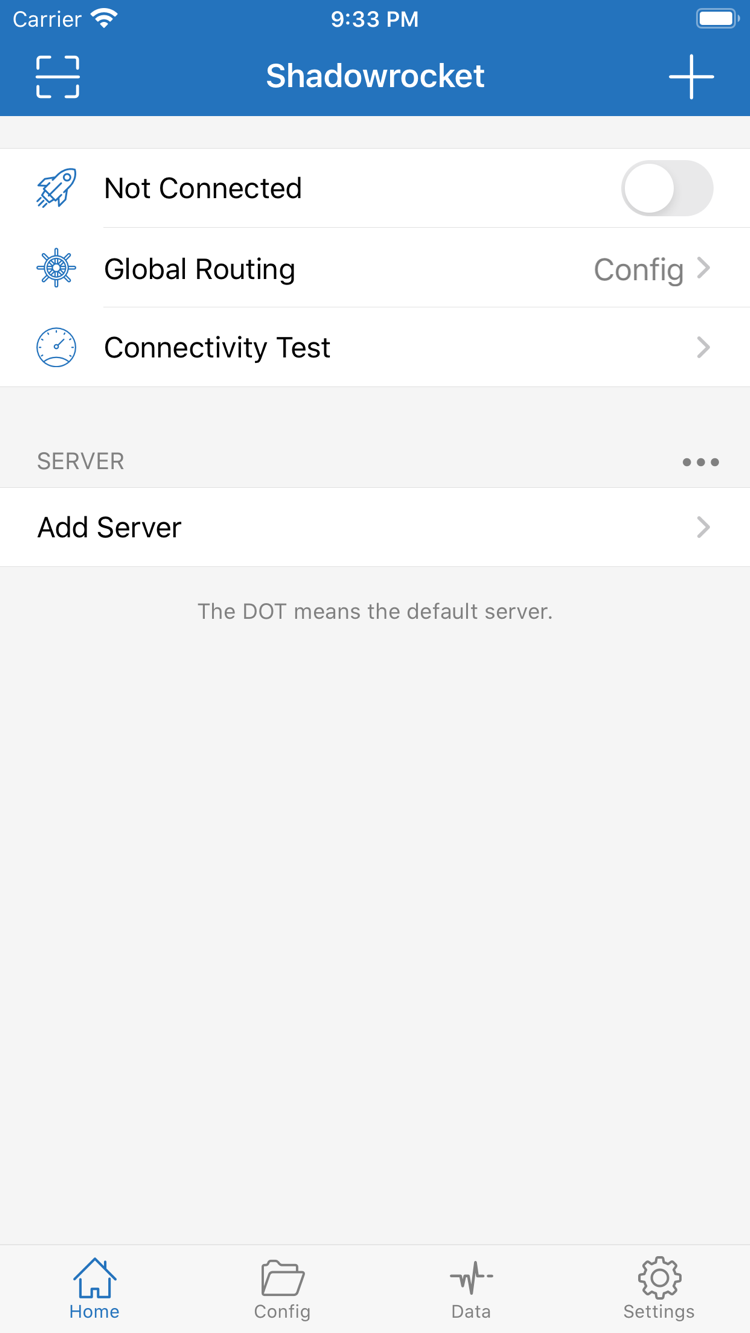
When you first open the app, the system may also ask to create a VPN connection or grant the required network permission. This is separate from allowing the installation file: the former lets the client establish connections; the latter lets the app launch. Check the app name in the prompt before granting permission. If you have just installed the app and have not imported a configuration yet, Home showing Not Connected is normal.
If the connection is still not established, do not reinstall repeatedly. First check whether you have imported your own subscription and selected an available server, then run Connectivity Test. Once installation is complete, continue with the quick start guide and follow the steps to import, select Global Routing, connect and verify.
App Store and account region
This section applies to iPhone / iPad only. The app is not available in the mainland China store. Search results depend on the country or region of the Apple ID used for Media & Purchases, not the language currently used on your device. Changing your phone's language or system region alone does not change the storefront associated with your App Store account.
Check the account used for purchases
Open Settings, tap the Apple ID account at the top, then select Media & Purchases.
Go to View Account, complete any required verification, then check the current storefront under Country/Region.
If you need to change it, use the Change Country or Region option on that page and follow Apple's displayed requirements and steps.
Return to the App Store and open Shadowrocket using the product link on this page. Verify the app name, developer and app ID before deciding whether to purchase.
Account balance, active subscriptions, Family Sharing status and local payment methods may all affect a region change. Seeing the option does not mean your account meets the requirements; follow the account page's instructions. Do not repeatedly change account settings just to see different search results. First note your current region and confirm how a change may affect existing purchases and services.
The US App Store price for iPhone / iPad is $2.99 once. Other storefronts show local currency; check the App Store page for the actual payment details. Mac, Windows, Android and Linux versions are free; get the installers on this site. You do not need to purchase the iPhone / iPad version before installing on a computer or Android device.
Verify the app and compare its interface
A matching product name alone does not confirm the source. For iPhone / iPad, verify the App Store listing; for computers and Android, check the download path on this site. The screenshots help identify Home and Add Server; they do not indicate whether a server is available.
Check three details in the App Store
Developer: Shadow Launch Technology Limited. Expand the product information to see the full name; do not rely only on the search result title.
Official icon: A rocket with a blue-violet outline on a white background, matching the official icon in this site's header. Similar colors or names do not identify the same app.
App ID: 932747118. Every App Store button on this page points to this product page, where you can check the app ID in the address again.
A free listing with the same name in the App Store is an imitation and cannot replace the product linked from this page. This price check applies to the iPhone / iPad App Store listing: that version costs $2.99 once. The Mac, Windows, Android and Linux versions are free; do not confuse the two ways of getting the app.
Check download sources for computers and Android
For Mac, Windows, Android and Linux, use the relevant button on this page. Installers on this site have paths beginning with /dl/shadowrocket/. Do not run a file just because its name contains Shadowrocket. If you got an installer from another page, return here to download it. Check that the file extension matches the selected platform: DMG for Mac, EXE for Windows and APK for Android.
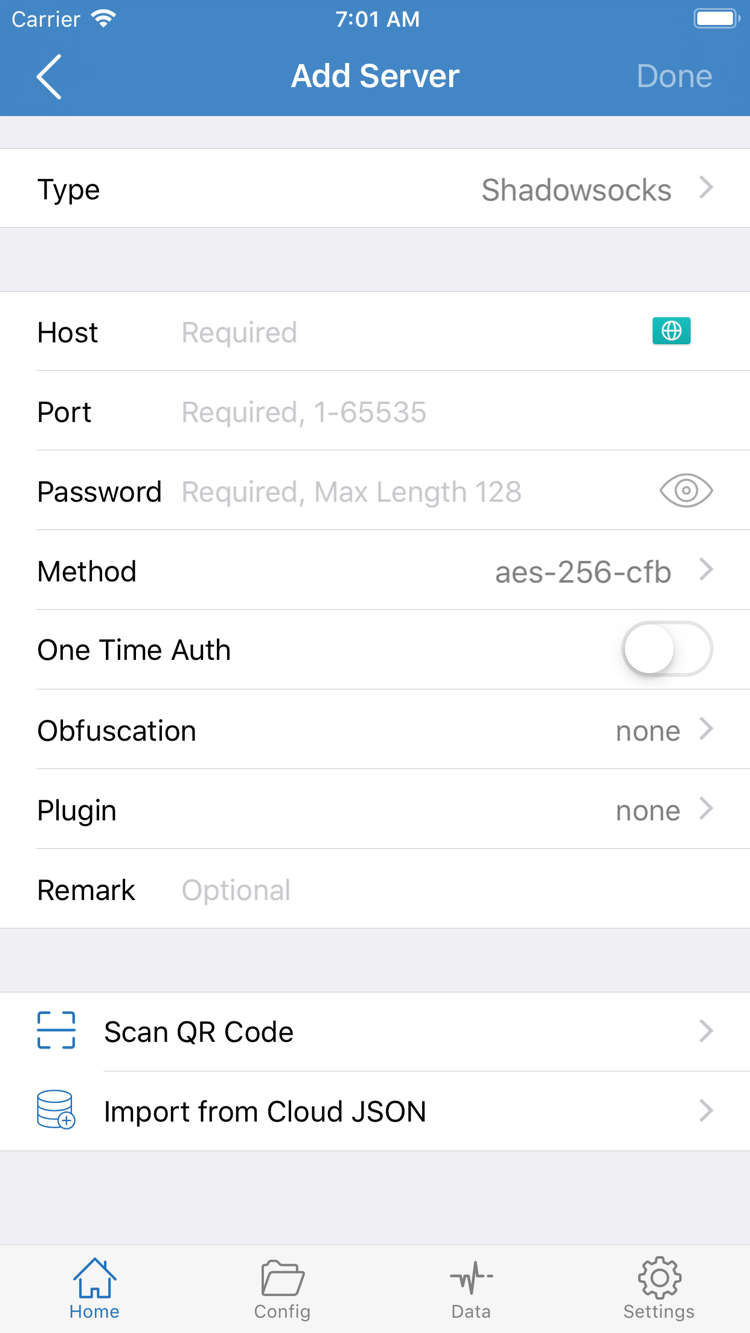
The two images on the right are official English interface screenshots uploaded to the App Store by the developer. Home shows Not Connected, Global Routing, Connectivity Test and SERVER; Add Server shows fields such as Type, Host, Port, Password and Method. Use them to locate interface controls. Do not treat the values in the screenshots as usable server details.
If your server list is empty after installation, import a subscription you already have or fill in Add Server using your existing server details. Protocol types and parameters must come from your own service provider's information. Do not guess Password or Method from a screenshot. See the terminology manual for explanations of these fields.
Home: locate the connection switch, Global Routing and SERVER list.Add Server: enter details from your own server information, or use Scan QR Code.
Changing devices, reinstalling and restoring configurations
App purchase records and proxy configurations are separate types of data. On iPhone / iPad, sign in with the Apple ID used for the original purchase and find Shadowrocket under App Store → Account → Purchased to download it again. The name of the purchase list may vary on some systems; check the app purchase records on your account page. An iPhone and iPad signed in with the same Apple ID can share one purchase.
The $2.99 iPhone / iPad purchase is a one-time charge; normal device changes or reinstalls do not charge you again for the same purchase. Mac, Windows, Android and Linux versions are free; on a new device, download the matching installer again. If the store shows a purchase button again, first check whether Media & Purchases is signed in to the original account. Do not pay again immediately.
Save your configuration before replacing the old device
Before uninstalling the app or wiping your old device, make sure you have safely saved your own subscription link, server details and any Config you want to keep. Reinstalling the app does not mean all custom rules, manually added servers and policy selections will return automatically. Keep information containing Passwords or subscription access credentials somewhere under your control; do not post them publicly in a discussion or screenshot.
Install the app on the new device, open it for the first time and grant the required connection permissions when prompted.
Import your own subscription or server details and confirm that the expected entries appear in the SERVER list.
Restore the Config you need and check that Global Routing matches your original use.
Run Connectivity Test, then verify access and rule matching. Clear the old device only after confirming everything works.
If your configuration depends on a subscription link, use a link that is still valid when restoring it. Downloading the client or restoring it from the store does not extend the validity of an existing service. If the list is empty, check the subscription first, then see the FAQ instructions for importing and troubleshooting.
Two pricing tiers and requirements for use
Shadowrocket has two ways to get it: iPhone / iPad costs $2.99 once in the App Store, based on US store pricing; other storefronts show local currency and prices on their product pages. Mac (Apple Silicon and Intel), Windows, Android and Linux versions are free. The iPhone / iPad client is not billed monthly, and you do not need to purchase the mobile version before using another platform.
All platforms require you to have your own subscription or server details. Check the terms of your existing service to see whether it is active, can be used on multiple devices at once or limits the number of devices. You cannot infer these terms from the client download price. After purchasing or installing the app, you still need to import your details, select a server and verify the connection.
Update the client and subscription separately
Update the iPhone / iPad app through the App Store. For Mac, Windows, Android and Linux, return to this page for the latest installer. Save any configurations you need before updating. The version shown on this page is read dynamically from the download manifest. If it has not refreshed yet, reopen this page later; do not guess the release date from the filename.
Updating Subscribe refreshes your existing server list; it is separate from updating the app installer. If a subscription refresh fails, downloading the client again may not solve the problem. Check that the link is complete, your existing service is active and your current network can access the link. If the client starts but cannot connect, check the configuration and server status first instead of assuming the installer is faulty.
After downloading, follow the quick start guide to set up the app for the first time. To understand the difference between Config, Proxy and Direct, see proxy modes. If you need to edit DOMAIN-SUFFIX, GEOIP or FINAL, read configuration fields. Avoid changing too many settings during the initial installation.
Download and installation FAQ
First check your device, architecture and download source, then address purchase records or system prompts.
Can I use Shadowrocket on a computer or Android phone?
Yes. The Mac (Apple Silicon and Intel), Windows, Android and Linux versions are free. Get the installers from this page; their paths are under /dl/shadowrocket/ on this site. The iPhone / iPad version costs $2.99 once in the App Store. All platforms require you to import your own subscription or server details.
Which Mac version should I choose: Apple Silicon or Intel?
Open About This Mac from the Apple menu. Choose the Apple Silicon version if Chip shows an Apple chip; choose the Intel version if Processor shows Intel. Both installers require macOS 12 or later.
What should I do if Windows says “Windows protected your PC”?
First confirm that you downloaded the installer from this page and that its path is under /dl/shadowrocket/ on this site. In SmartScreen, select “More info,” verify the file, then select “Run anyway.” If a managed computer does not offer this option, contact its administrator. Do not disable system-wide protection.
Why can't I find Shadowrocket in the App Store?
The app is not available in the mainland China store. The country or region associated with your Apple ID determines which store you can see. Check Settings → Apple ID → Media & Purchases → View Account → Country/Region. Changing regions requires meeting Apple's account conditions; seeing the option does not guarantee the change can be completed.
Do I have to pay again when I change devices or reinstall?
On iPhone / iPad, sign in with the Apple ID used for the original purchase and download the app again from App Store → Account → Purchased. You will not be charged again for the same purchase. The $2.99 one-time iPhone / iPad purchase is available under the same Apple ID. Mac, Windows, Android and Linux versions are free; download and install them again on your new device. Subscriptions and configurations must be restored separately.
Can I install Shadowrocket on iPad and share the purchase with iPhone?
Yes. An iPhone and iPad signed in with the same Apple ID can share one App Store purchase. The US store price is $2.99 once; Mac, Windows, Android and Linux versions are free. Check the App Store page for iPadOS system requirements. After installation, you still need to import your own subscription or server details.